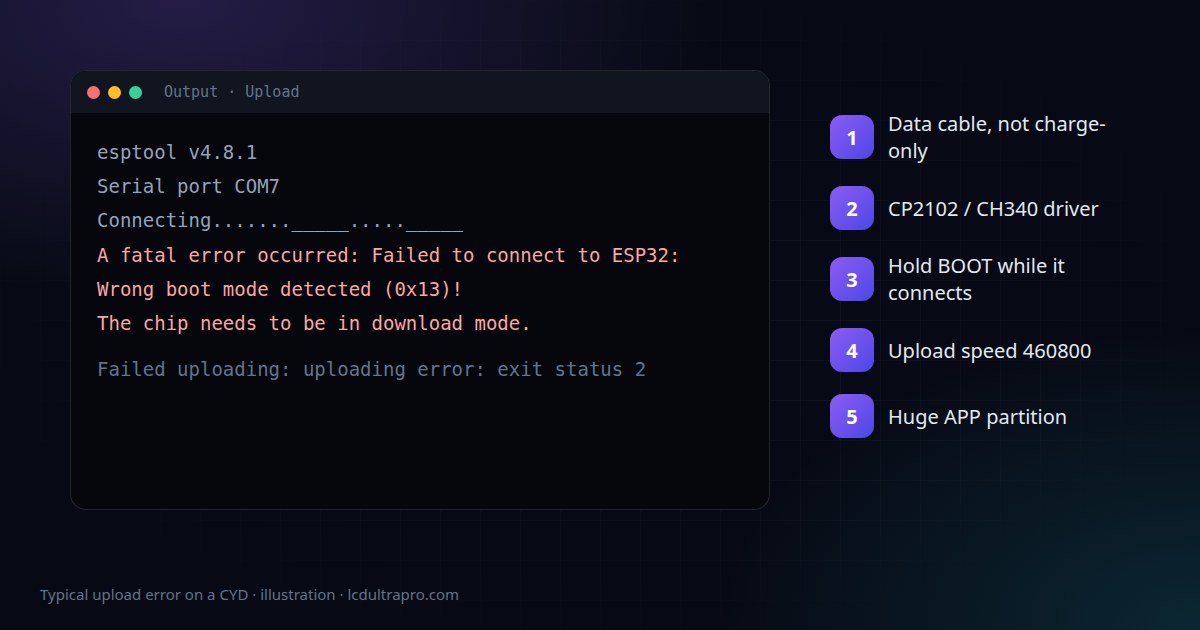
If a new cable doesn't help, work down this list. It's in the order that saves the most time.
- 1No port appears at all: driver or cable.
- 2The port appears but the upload fails at "Connecting...": boot mode.
- 3It connects and then dies halfway: upload speed or power.
- 4It compiles but refuses to upload because of size: partition scheme.
No port in the Arduino IDE
The ESP32 on a CYD doesn't speak USB itself. A small USB-to-serial chip next to the port does that job, and your computer needs a driver for it. Our board data for the original lists a Silicon Labs CP2102. Some batches are reported with a WCH CH340 instead, and the chip's marking near the USB port settles it. On Windows, open Device Manager while you plug the board in. An unknown device that appears and disappears means a driver is missing. Nothing appearing at all means the cable, again.
On Linux, the port can show up and then vanish a second later. That's usually the brltty service, a braille display driver that grabs anything that looks like a serial adapter. Remove it, and make sure your user is in the dialout group. The CYD repository's troubleshooting page mentions both.
If the port is there but the IDE says it's busy, something else has it open. A serial monitor in another window, a second copy of the IDE, a 3D printer host. Close them.
Stuck at "Connecting..."
To accept new firmware the ESP32 has to restart into its bootloader. The USB-serial chip normally does that automatically using two control lines, and on some computers and driver versions that handshake doesn't quite work. You get Failed to connect to ESP32 or the more specific Wrong boot mode detected (0x13).
The manual way round it: hold the BOOT button, start the upload, and let go when the IDE starts writing. If the board has a RESET button, holding BOOT and tapping RESET also works.
If you're doing that every single time, there's a hardware fix. The CYD troubleshooting page traces it to a 0.1 µF capacitor between EN and GND that's too small for the auto-reset to work reliably. Replacing it with something between 1 and 10 µF fixes it. On the original board it's C4, on the USB-C version it's C5. It's a small SMD part, so only if you're comfortable with a soldering iron.
It connects, then fails partway
Lower the upload speed. 921600 baud is the default for most ESP32 boards and usually fine, but a long cable or a cheap hub can make it unreliable. 460800 is barely slower in practice, and 115200 almost always works if nothing else does.
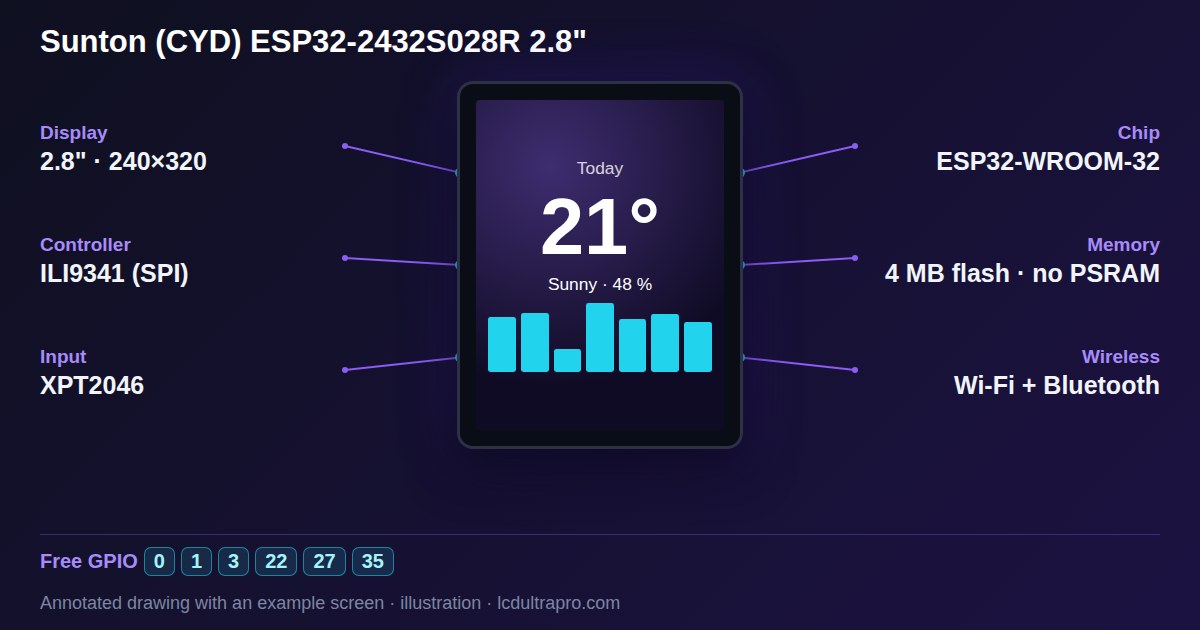
Also check what's plugged into the P1 connector. GPIO 1 and 3 are the same serial lines the upload uses, so a sensor or another board hanging on P1 can interfere with every upload.
"Sketch too big"
The CYD has 4 MB of flash, and with the default partition scheme only part of it is for your program. An LVGL project with a few fonts and Wi-Fi goes over that quickly. In the Arduino IDE, pick Tools → Partition Scheme → Huge APP. That gives up over-the-air updates in exchange for room for a 3 MB program, which is the right trade for most display projects.
One honest note to end on. If you've tried two cables, the driver, the BOOT button and a slower speed, and the board still never shows up on any computer, it may simply be faulty. These boards are cheap for a reason, and contacting the seller is a perfectly reasonable next step.
- #cheap yellow display
- #esp32 upload
- #failed to connect
- #cp2102
- #ch340
- #arduino ide